How it works
From set-up to the daily read.
Information is organised around each player, their sessions, the microcycle and the season. This is how Athlo is used every week.
01
Set-up
Before the first session: you load the season, the squad and who can see or do what.
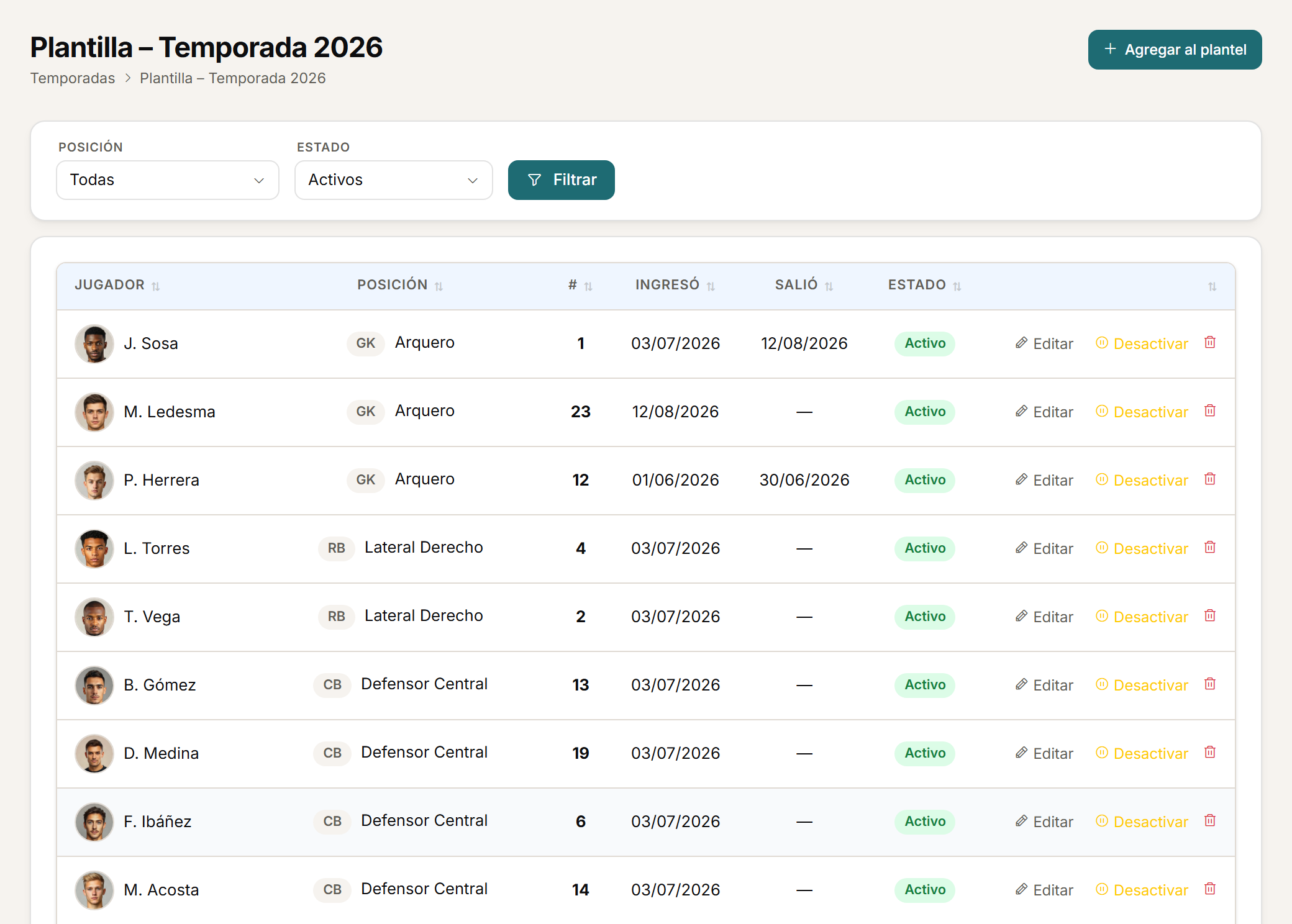
Seasons and squad
The season's squad.
Manage seasons and squads while keeping each player's historical link to the team.
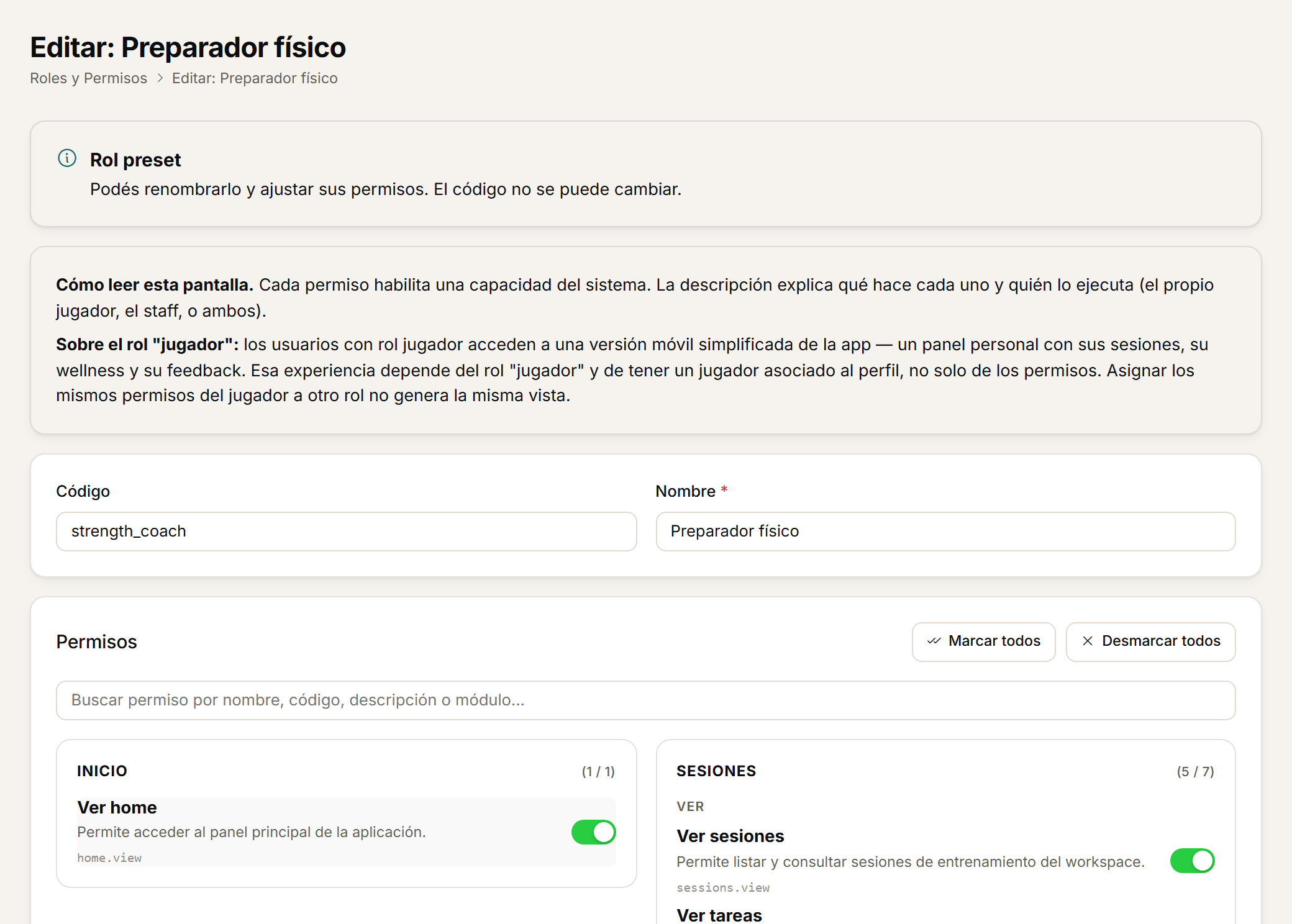
Roles and permissions
Each role, with its permissions by module.
Configure roles and permissions by module to define who can view, enter or manage each area.
02
The week
Every session already has its place on the calendar and its microcycle day, before the week begins.
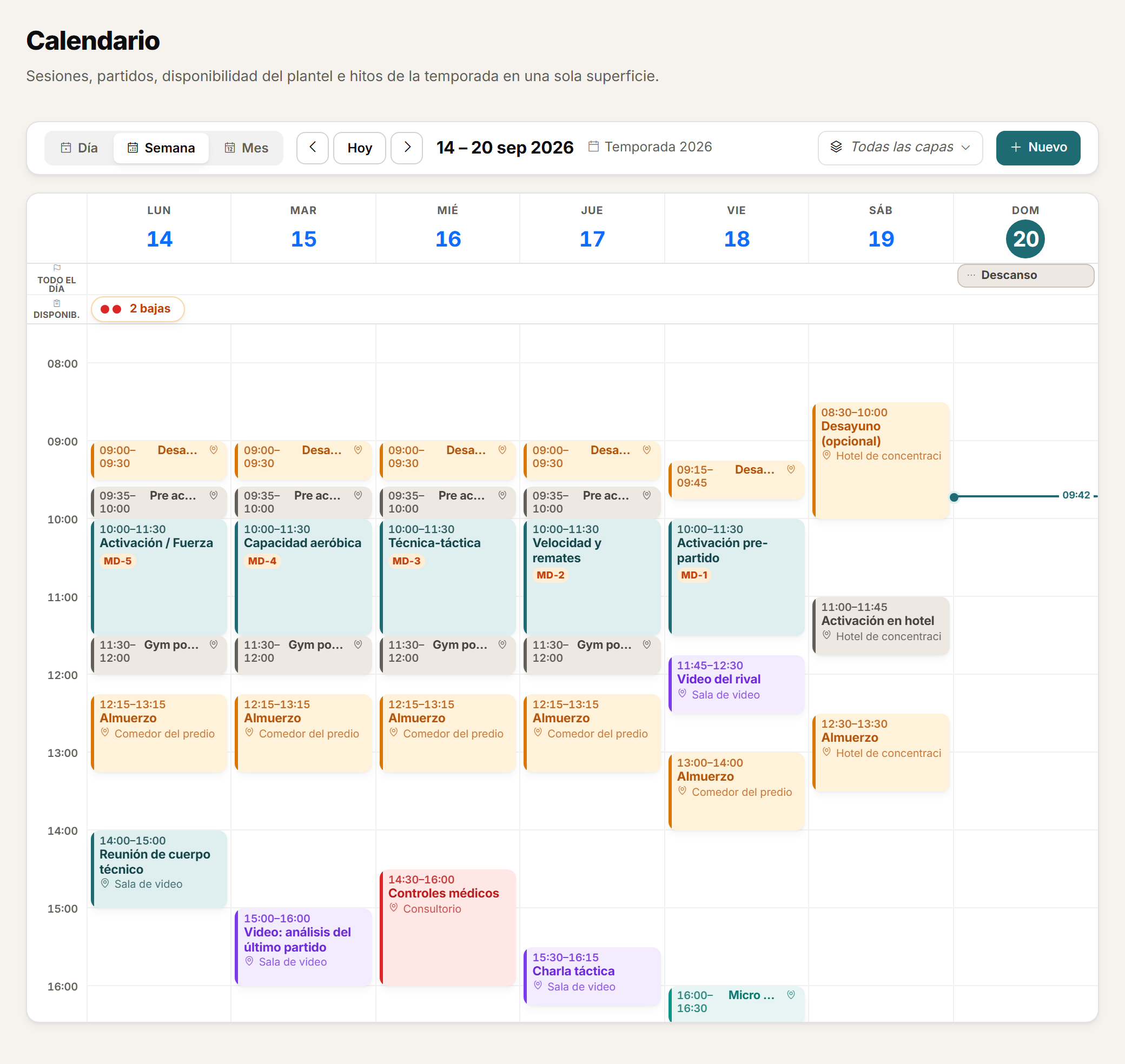
Calendar
The week, in a shared calendar.
Check sessions, matches, availability and events in a calendar with daily, weekly and monthly views. Create events for the whole squad or for specific roles and duplicate planning days when you need to.
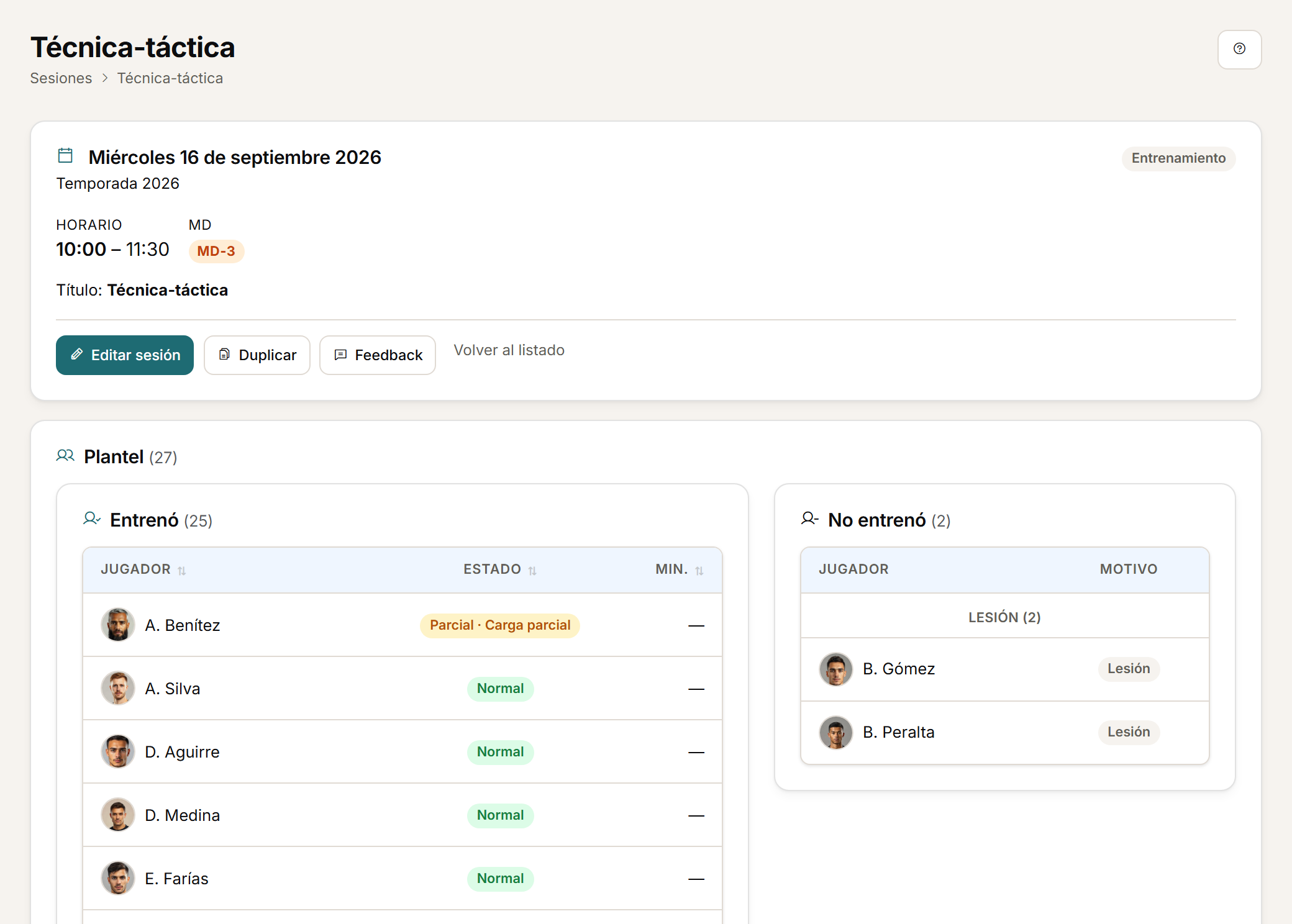
The session
The session, with its microcycle day.
Plan training sessions and matches with date, time, microcycle context, call-up and participation. Split a session into drills or blocks and record the actual participants of each part.
03
The training day
From the morning's wellness to the afternoon's GPS load, everything stays tied to the same session.
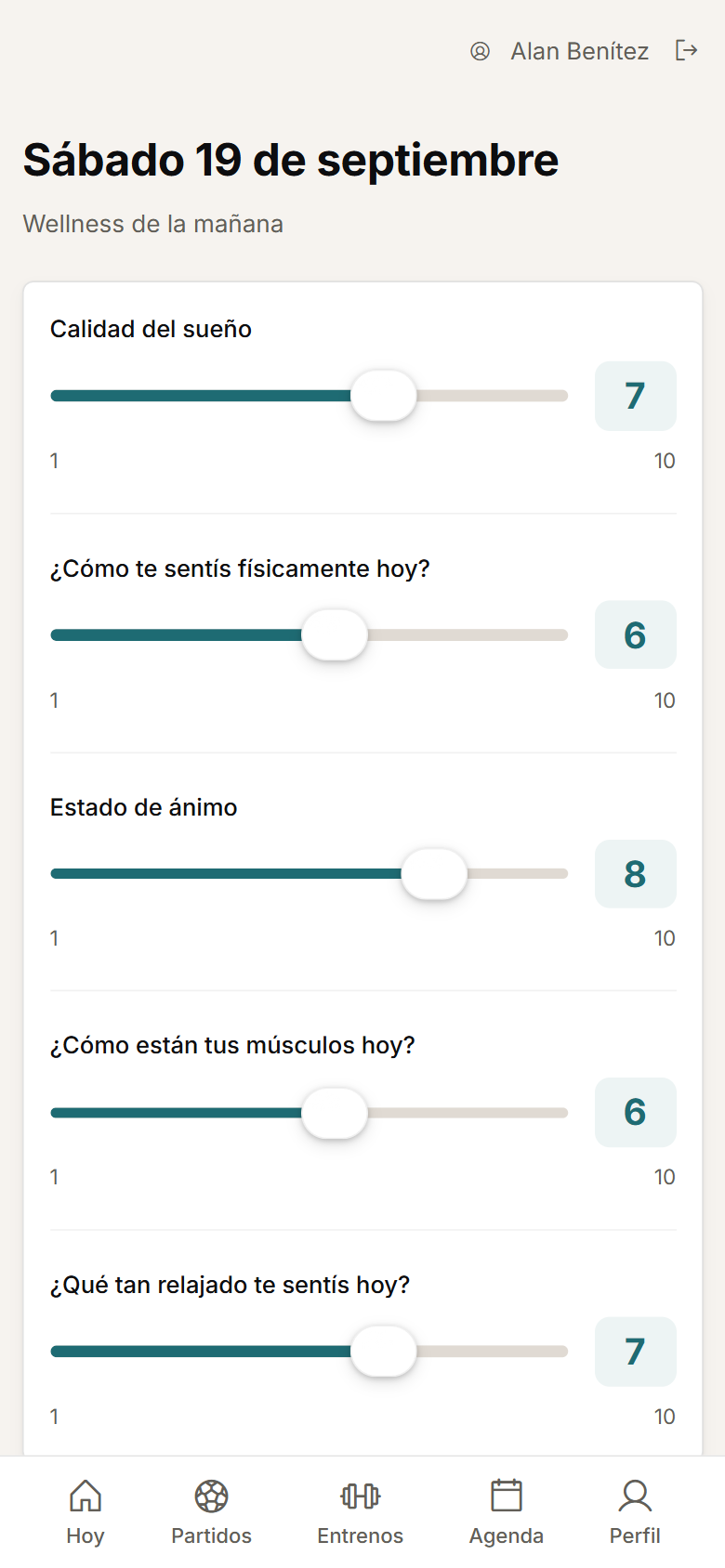
Before training
Wellness, from a phone or a shared tablet.
The player completes their own wellness from their phone and staff can enter or correct records according to their permissions. Before training, it can also be completed from a shared changing-room tablet, limited to the selected day or session.
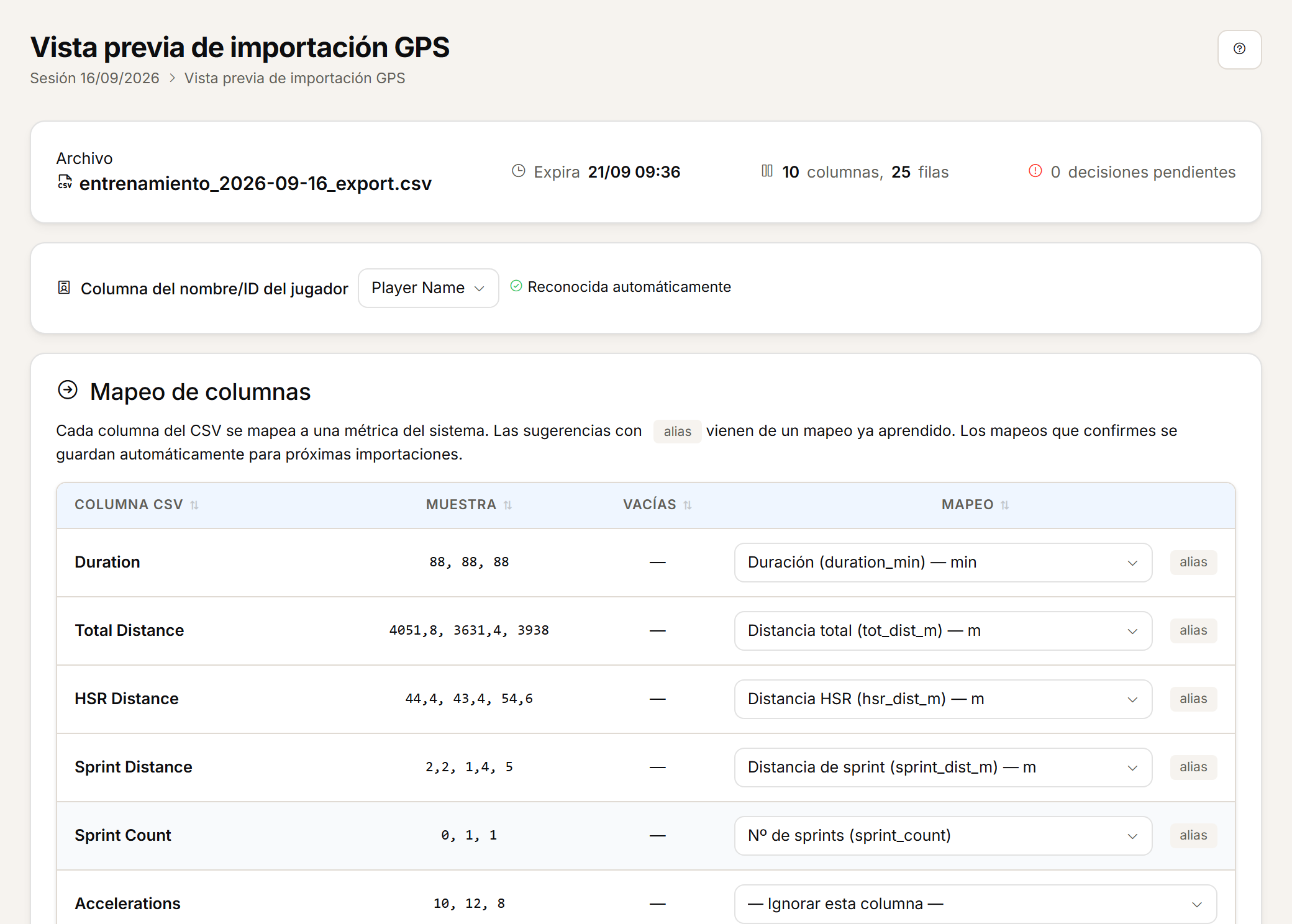
After training
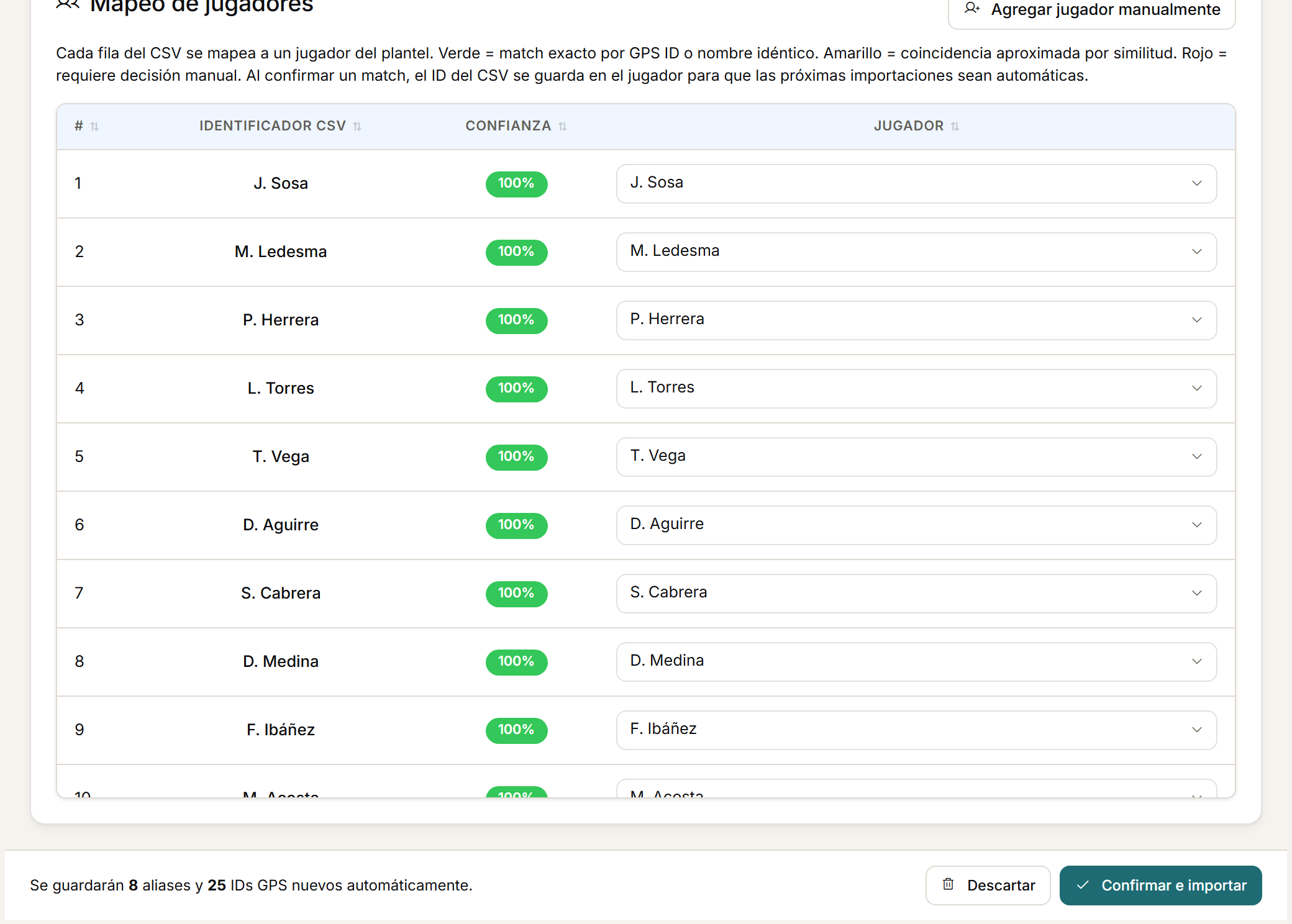
The GPS file, reviewed before you confirm.
Upload the CSV exported by your GPS and review how Athlo read the columns and players before confirming. Athlo remembers confirmed matches to simplify future imports.
Players recognised
Players recognised and confirmed.
Athlo automatically recognises the columns and the players, and leaves the final decision to you. On re-import, Athlo updates the players present in the new file and keeps those who do not appear in that upload.
After the session
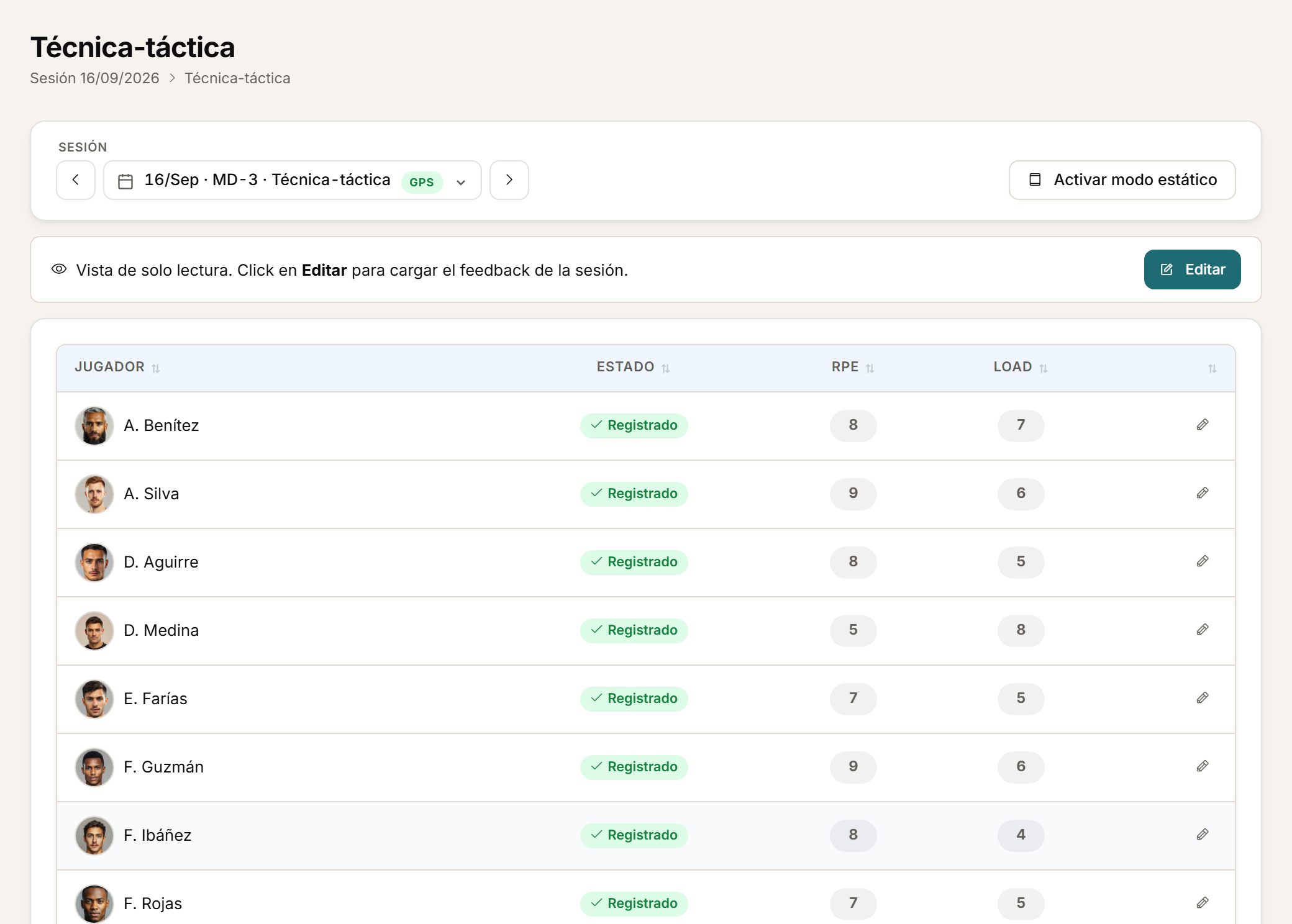
RPE and the rest of the feedback.
After a session, the player can log their RPE and other feedback questions; staff can also enter answers in bulk.
04
The read
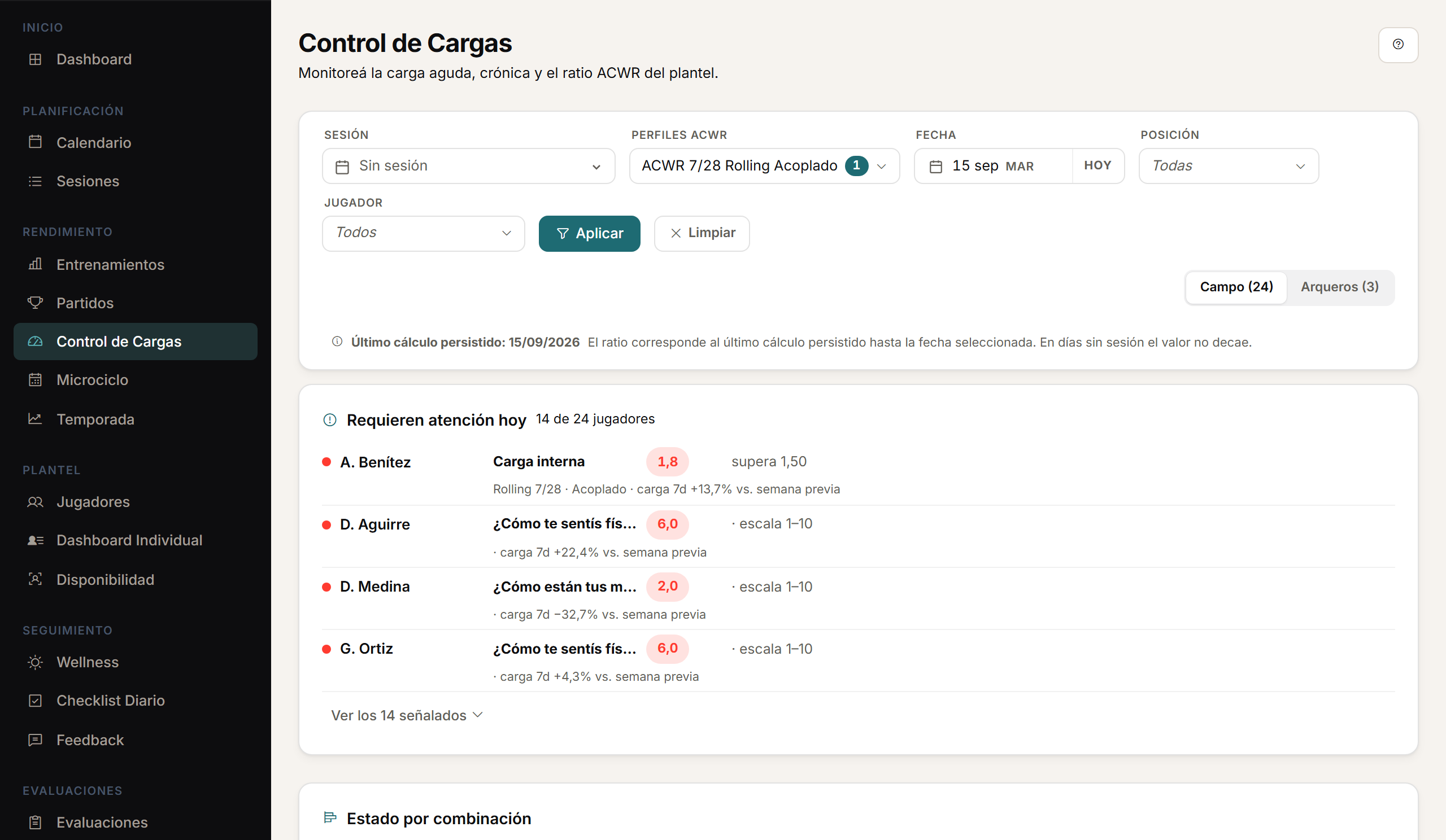
With the session logged, load monitoring and the daily dashboard show the squad's status.
Load monitoring
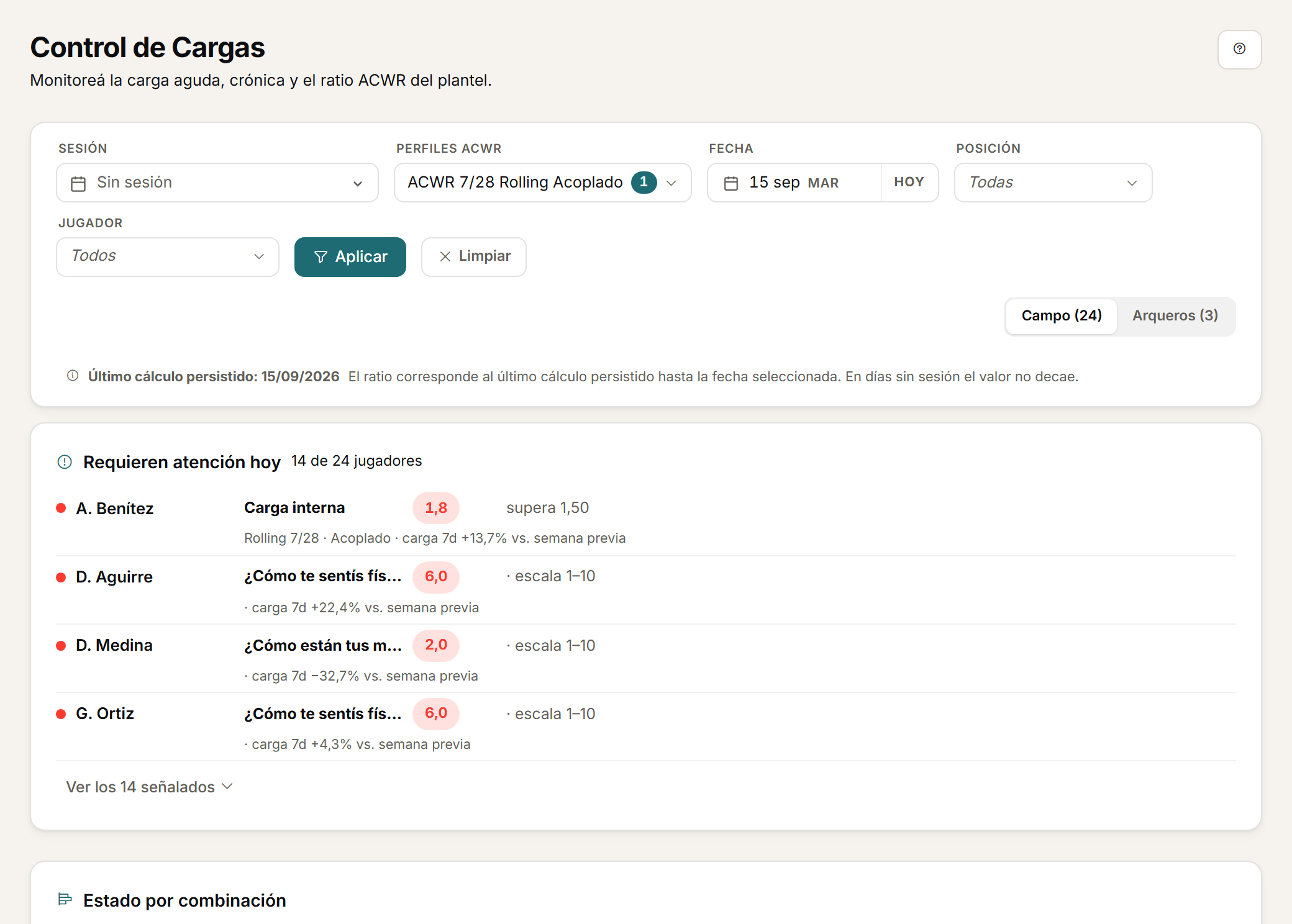
The day's load, in one table.
ACWR is the ratio between a player's recent load and their usual load. Analyse load by session, microcycle and season, with team and player views. In load monitoring, staff can check wellbeing and availability context next to the physical indicators.
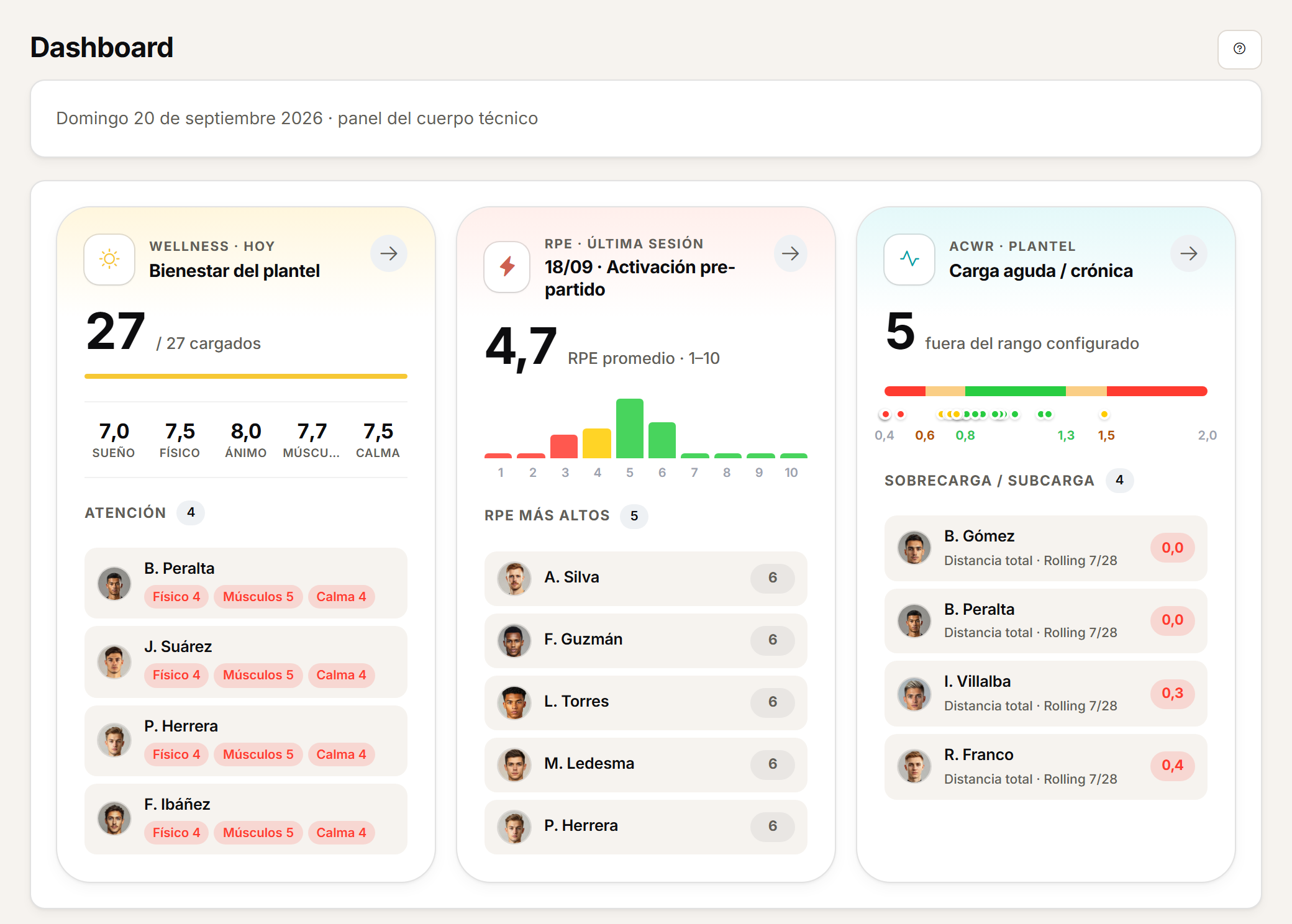
Daily dashboard
The dashboard that orders the day.
The daily dashboard brings together sessions, wellness, feedback, load and availability to guide the day's work.
What stays linked.
- An injury can link to its absence period, to align the clinical record with sporting availability.
- The daily report can bring forward earlier records without overwriting what has already been entered for the new date.
Guided tours inside the product.
- Guided tours inside the product help you get to know the main screens.
- These are tours for accounts that are already signed in: different from the public two-minute tour, which you can watch without signing in.
FAQ
Before you request a demo.
How long does set-up take?
There is no fixed timeframe: it depends on the size of the squad and how many roles you configure. You manage seasons and squads while keeping each player's history, and set module permissions before the first session.
Who configures roles and permissions?
A club administrator configures roles and permissions by module: who can view, enter or manage each area. Some new permissions require manual assignment for clubs that were already using Athlo.
What happens if I re-import the GPS CSV?
On re-import, Athlo updates the players present in the new file and keeps those who do not appear in that upload.
Personalised demo
Request a demo with your data.
We will show you the set-up and a full training day, with your own GPS CSV.
Request a demo with your dataOr watch the two-minute tour first
No form needed to see the product. For the demo, an email or a WhatsApp message.
The product interface is currently in Spanish.
What happens next
- 01
You write to us on WhatsApp or email.
Tell us about your club and what you would like to see first.
- 02
We prepare the demo with your data.
We build it on your own GPS CSV and how you calculate load.
- 03
A video call with your staff.
About 45 minutes, with room for every question.